
How to Change Icon Color (PNG, SVG, and App Icons)
By CloudToolbox Team · Published
The perfect icon usually comes in the wrong color: black when your design is navy, or last year's brand blue. How you fix that depends on what kind of icon it is, and the same question covers the icons on your phone's home screen too.
First: what kind of icon is it?
- A PNG (or JPG/WEBP) icon file. The most common case, from icon sites, a designer, or an export. The color is baked into the pixels, so you need a tool that recolors pixels.
- An SVG icon file. SVGs are text. The color is written inside the file, so you can change it by editing one value.
- App icons on your phone. You can't edit another company's app icon, but both iPhone and Android can tint them for you.
How to change the color of a PNG icon
A PNG icon is a grid of pixels, so changing its color means finding every pixel of the old color and swapping it for the new one. You can do that for free in our Color Replacer, which runs in your browser without uploading the file:
- Upload your PNG icon.
- Click the icon itself on the preview. That picks its exact color as the color to replace, which is far more reliable than typing a hex code you think it is.
- Set New color to the color you want. If you have a brand hex code like
#1d4ed8, type it in. - Choose Solid color under "How to recolor". Icons are usually one flat color, and solid mode gives you exactly the hex code you entered.
- Use the Before/After toggle to check the result, then download it.

Transparent backgrounds stay transparent: the tool only changes color, never transparency. That also takes care of the edges. In a transparent PNG, the soft edge pixels of an icon are the icon's own color at partial opacity, so they recolor cleanly at a low tolerance. (For logos and other PNG graphics, see how to change the color of a PNG.)
Icons on a solid background
If your icon sits on a white or colored background (common with JPGs), the edge pixels are a blend of the icon color and the background. At a low tolerance those blends keep a faint ring of the old color. Raise the tolerance slider a little at a time until the ring disappears, and stop before the background starts changing too.
Icons with more than one color
Recolor one color at a time: change the first color, download the result, upload it again, and change the next. If the same color appears in two places and you only want to change one of them, turn on Only the area I click and click the part you want. Only the connected region around your click changes.
Icons with gradients or shading
For a glossy or 3D-style icon, switch to Keep shading instead of Solid color. It moves every matching pixel to the new hue and keeps its brightness, so the highlights and shadows survive.
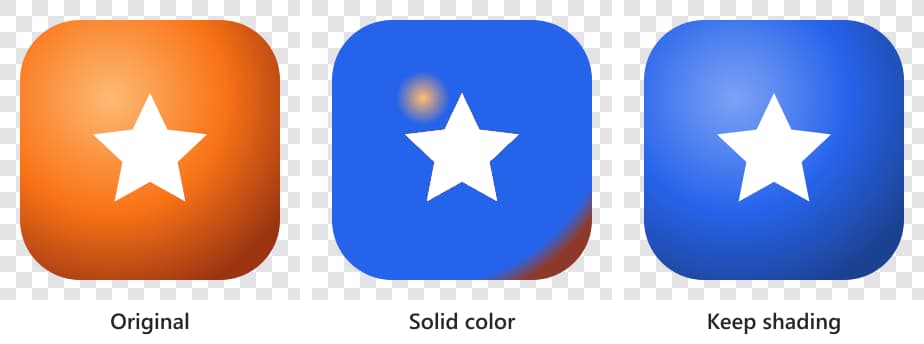
Gradients need a higher tolerance than flat icons, because the lightest and darkest parts are far from the middle color you click. We needed about 60 for this one. Even then, Solid color left an orange spot where the highlight was brightest, and it flattened everything else into one tone.
How to change the color of an SVG icon
Open the .svg file in any text editor (Notepad, TextEdit, VS Code). You'll see something like this:
<svg viewBox="0 0 24 24">
  <path fill="#000000" d="M12 2L2 7l10 5 10-5-10-5z"/>
</svg>
Change every fill="#000000" (and any stroke="…" on outline-style icons) to your new color, save, and you're done. Nothing is lost, because SVGs are drawn from shapes, not pixels.
If you're using the icon on a website and it says fill="currentColor", don't edit the file at all. The icon takes the text color of whatever surrounds it, so set the CSS color on its parent element instead. Icon libraries like Font Awesome and Material Icons work the same way: you change their color with CSS, not by editing image files.
Need the SVG as a regular image afterwards? Our SVG to PNG converter turns it into a PNG.
How to change app icon colors on iPhone
Since iOS 18, iPhones can tint every app icon on the Home Screen to one color:
- Touch and hold an empty spot on the Home Screen until the icons start to jiggle.
- Tap Edit in the top-left corner, then Customize.
- Choose Tinted, then drag the color and brightness sliders, or use the eyedropper to pick a color from your wallpaper.
The tint applies to all icons at once. iOS can't give individual apps different colors. For that, people make Shortcuts with their own custom icon images, and the PNG method above is how you'd recolor those images.
How to change app icon colors on Android
On Pixel phones and many others running Android 13 or later, open Settings → Wallpaper & style and turn on Themed icons. Supported apps switch to icons tinted to match your wallpaper's colors. Samsung phones have a similar option under Wallpaper and style → Color palette. The exact menu names vary by phone maker and Android version, and apps that don't provide a themed icon keep their normal colors.
Common questions
How do I make a black icon white?
Upload it to the Color Replacer, click the icon, set the new color to #ffffff, and use Solid color. A white icon on a transparent background looks invisible on a white page, but the preview's checkerboard background shows it clearly, so you can confirm it worked before downloading.
Will changing the color reduce the icon's quality?
No. The output keeps the same size and format, and only the matched pixels change. If you need the icon bigger, though, start from a larger source or an SVG. Enlarging a small PNG always blurs it, whatever color it is.
Can I change an icon's color and use it as a favicon?
Yes. Recolor it, then upload the result to our Favicon Generator to get favicon.ico and every other size a website needs.