
How to Compress a PNG Without Losing Quality
By CloudToolbox Team · Published · Updated
PNG is a lossless format. Every pixel you save is the pixel you get back, however many times you re-save the file. So the "quality" slider on a PNG compressor can't work like the one for JPG, which blurs away detail on purpose. It does something else: it cuts down the number of different colors in the image, and a file with fewer colors packs much smaller.
Whether you can see that depends entirely on what the PNG is. We ran three typical files through our Image Compressor to find out.
What we measured
| File | Original | Lossless re-save | Quality 80 | Colors |
|---|---|---|---|---|
| Logo, 1200×693, transparent | 56 KB | 29 KB (−49%) | 17 KB (−69%) | 2,769 → 22 |
| Screenshot of a web page, 1440×900 | 65 KB | 40 KB (−39%) | 30 KB (−54%) | 1,442 → 84 |
| Photo saved as PNG, 2272×1704 | 1.32 MB | 1.18 MB (−11%) | 772 KB (−42%) | 16,599 → 90 |
Three things stood out.
Most of the saving needed no quality change at all. Re-saving the logo with stronger lossless compression cut it from 56 KB to 29 KB with every pixel identical, about 70% of the total saving. The screenshot was the same story. Design tools and screenshot tools favor speed over file size when they save, so many PNGs are bigger than they need to be before you touch a single color.
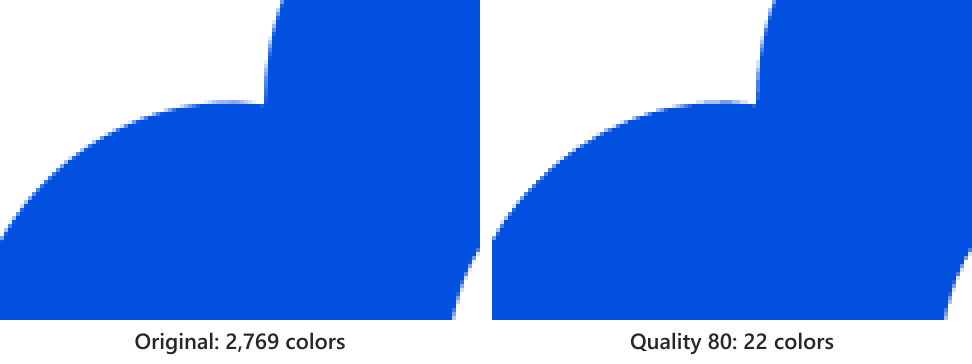
The logo lost almost all of its colors and looked the same. It went from 2,769 colors to 22. Nearly all of those 2,769 were tiny variations along anti-aliased edges, and the compressor rebuilt the edges from the few colors it kept.
The photo is where PNG compression runs out. It shrank by 42%, but 772 KB is still a lot for one picture. Saving the same photo as a JPG at quality 80 gave us 95 KB, and as a WebP 32 KB. That's 8 and 24 times smaller than the compressed PNG.
What low settings do to a photo
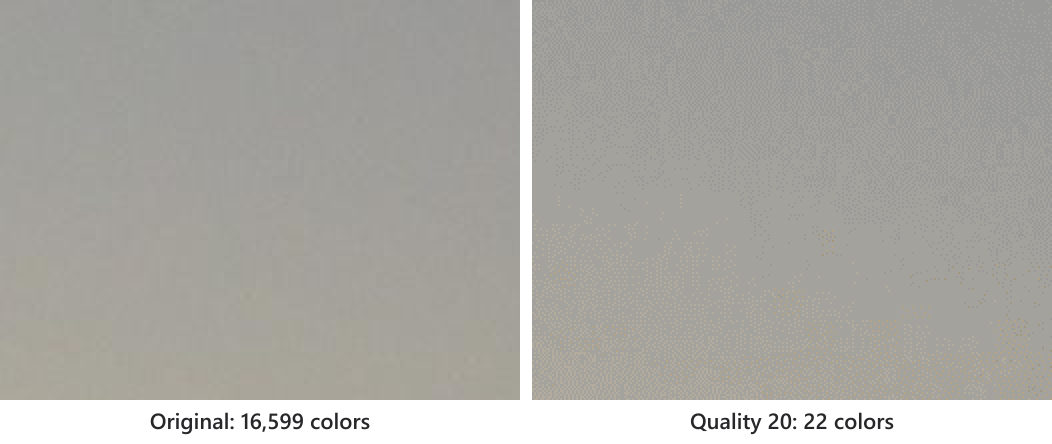
A photo needs thousands of colors for smooth gradients. When the compressor cuts that down, it fakes the missing shades by scattering dots of the colors it kept (dithering). At quality 80 that's hard to spot. At quality 20 a smooth sky turns visibly grainy, as above. On a logo, screenshot or flat illustration you won't see either.
Which files to compress, and which to convert
- Logos, icons, screenshots, diagrams, flat illustrations: compress them as PNG. The default quality of 80 is a safe start. In our tests, dropping to 50 or even 20 saved less than 4 KB more on the logo and the screenshot, so it's rarely worth going lower.
- Photos: don't keep them as PNG. Convert to JPG, or WebP if the place you're uploading accepts it, with the Image Format Converter. Keep PNG for a photo only if you need a transparent background.
How to compress a PNG
- Open the Image Compressor and choose your PNG.
- Leave the quality at 80 and click Compress. PNGs are processed on our server, because browsers can't reduce a PNG's color palette, and the files are deleted automatically afterwards.
- The tool shows the old and new size and the percentage saved. Open the result and compare it to the original at 100%. If it looks the same, you're done. If you see grain, compress again at a higher quality.